Using Glossaries in Translations View
Glossaries help you maintain consistent terminology when translating your content. When working in bigger teams, this feature helps ensure consistency in translations.
Glossaries also support translators by clarifying the meaning, context, and preferred usage of terms, reducing ambiguity and errors. A glossary is often defined by a topic expert or localization manager. It serves as a reference for all translations in the project. This tool strengthens quality control and speeds up the translation process by minimizing repetitive decision-making.
How to Set Up Glossaries
Before using glossaries and their features in the translation view, make sure you have set them up properly by referring to Manage Glossaries page.
Highlight Glossary Terms
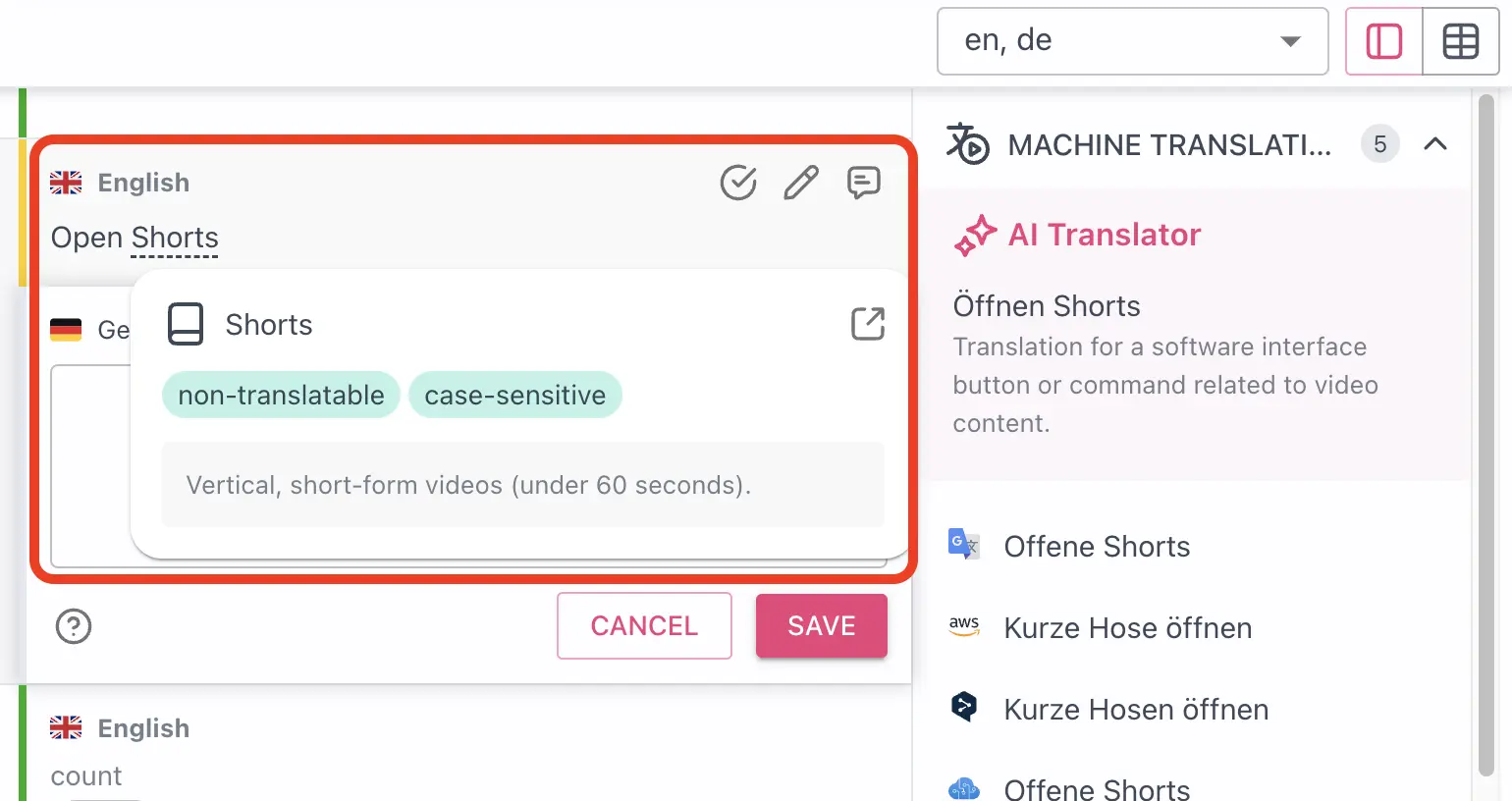
When you click on the translation field of a key that contains glossary terms, these terms are highlighted in the base text, and their definitions are displayed in the glossary panel while editing translations. Hovering over highlights will display a tooltip containing the term, its suggested translation, description and tags.
It helps not to miss any terms that are in your glossary during translation, see their tags and descriptions.
Glossary Panel
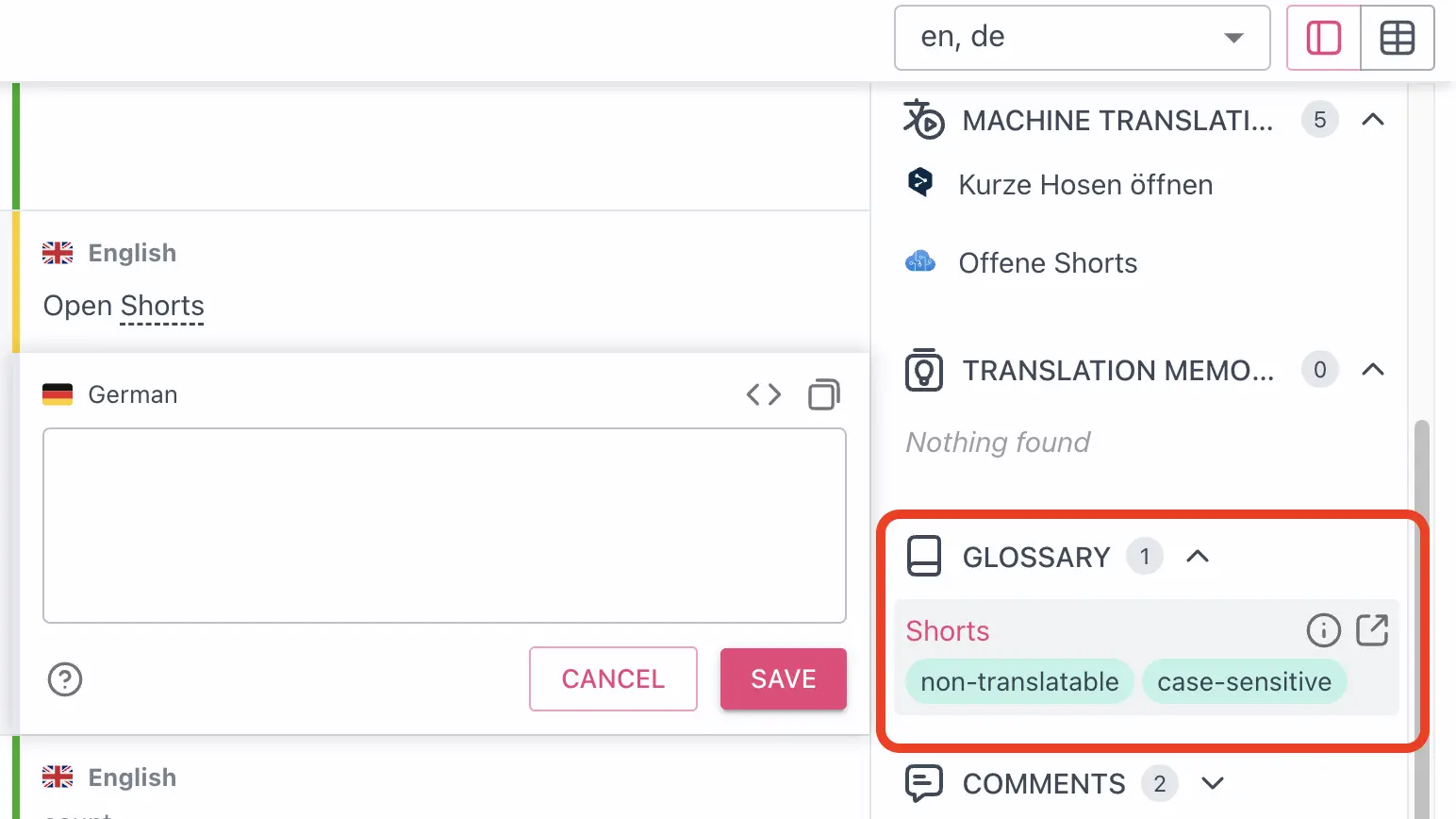
In addition to being highlighted directly in the translation view, glossary terms are also displayed in the panel on the right. This panel allows you to quickly review term details, and by clicking the “Open term in glossary” button next to the terms on the right side, you can navigate directly to that term in the glossary for further review or editing.
The glossary panel shows all glossary terms found in the base text in the right sidebar. For each term, you can see:
- The term text
- Any flags associated with the term (non-translatable, case-sensitive, abbreviation, forbidden)
- The term description when hovering over the
(i)icon
Tips for Using Glossary Terms
In addition to seeing the suggested translation for a glossary term, it's important to consider its description and tags to ensure accurate proper localization without mistakes.
When translating content with glossary terms:
- Check the glossary panel to see the terms and their descriptions
- Pay attention to the flags:
- Non-translatable: Do not translate these terms
- Case-sensitive: Maintain the same case in your translation
- Abbreviation: Keep the abbreviation format
- Forbidden: Avoid using these terms in your translation
Glossary Terms Matching
When searching for glossary terms in the translation, Tolgee tries to match the whole term against the translation in a case-insensitive way.
The flags affect the process in the following ways:
- Case-sensitive: When set, the system will only match the term if it has the exact same case as defined in the glossary. For example, "API" will not match "api" if a case-sensitive flag is set.
- Non-translatable: When enabled, the translation of the term in the base language will be used for all languages, regardless of the target language.
- Abbreviation and Forbidden: These flags have no effect on the search process itself but still provide guidance for both human and AI translators.
Machine Translation and Glossaries
When using machine translation, the glossary terms are taken into account. This helps ensure that:
- Non-translatable terms remain untranslated
- Terminology is consistent across all translations